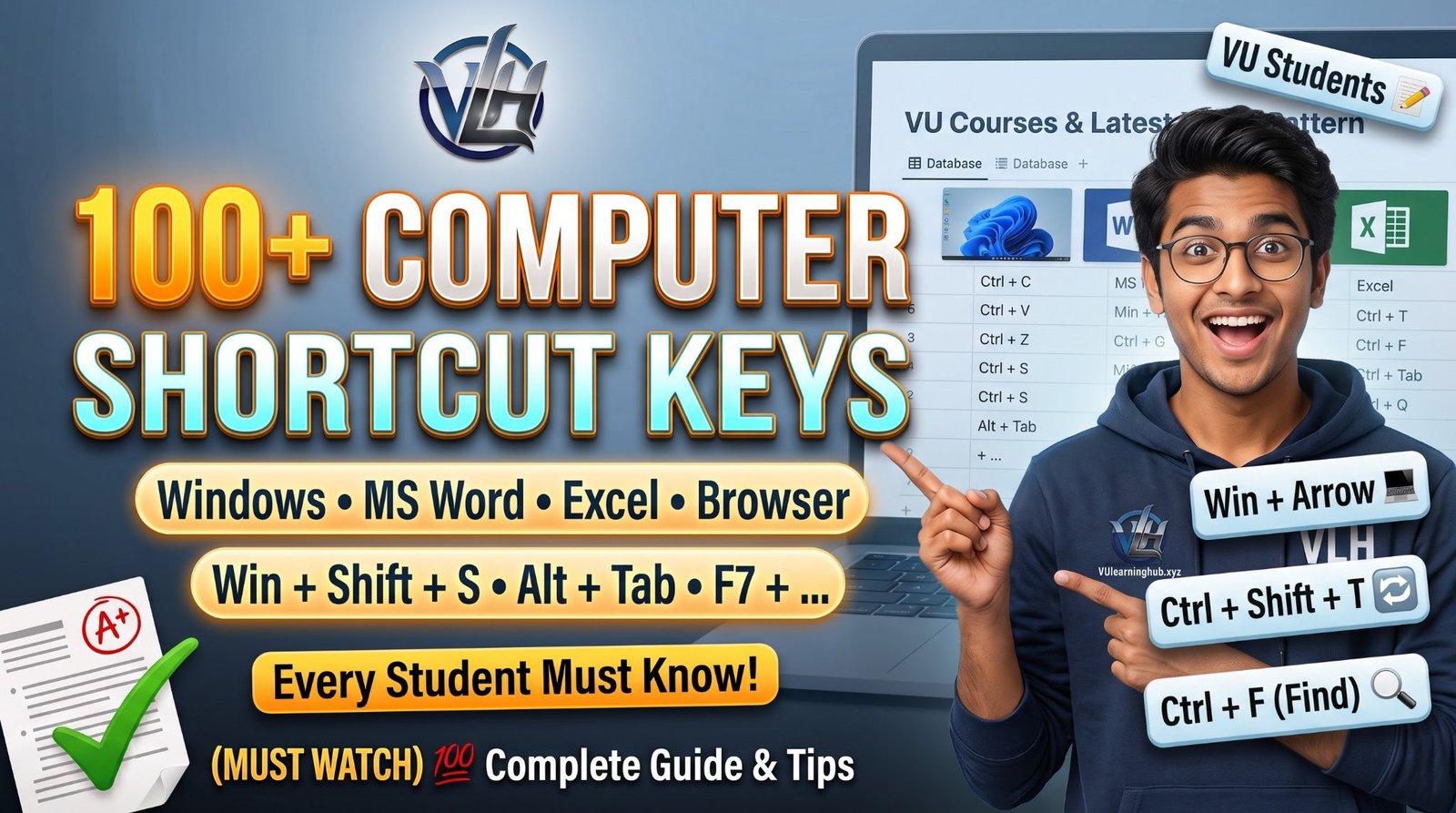
Here's an uncomfortable truth: most students don't struggle with their subjects — they struggle with their tools. A VU student can spend 3 hours on an assignment that should take 1 hour, simply because every small action (copy, paste, format, switch windows, find text) is done the slow way, with the mouse.
Shortcut keys are the difference between students who finish assignments on time and students who are still formatting at 2 AM. This guide covers 100+ essential shortcut keys — from basic Windows shortcuts to MS Word, Excel, browser, Gmail, and even mobile typing tricks.
Save this page. You'll use it every single day.
Why Shortcut Keys Matter for Students
Think about a typical assignment day: you open handouts, search for answers, copy text, switch between Word and browser, format headings, fix spelling, save, and submit. Each of those actions takes 5–10 seconds with a mouse — but less than 1 second with a keyboard shortcut.
Multiply that by hundreds of actions per assignment, several assignments per subject, multiple subjects per semester. The students who know shortcuts aren't smarter — they're just faster, and they finish with energy left for actual studying.
General Shortcuts (Work Everywhere)
These are the foundation. If you learn nothing else, learn these:
- Ctrl + C = Copy
- Ctrl + V = Paste
- Ctrl + X = Cut
- Ctrl + Z = Undo (your best friend — reverses your last action)
- Ctrl + Y = Redo (re-applies what you undid)
- Ctrl + A = Select All
- Ctrl + S = Save (press this every few minutes — don't learn this lesson the hard way)
- Ctrl + P = Print
- Ctrl + F = Find (search for any word on the page — massively useful in long handouts)
- F2 = Rename selected file/folder
- Ctrl + Shift + S = Save As (in most programs)
Student tip: Ctrl + F inside a PDF handout lets you jump straight to the topic you're looking for instead of scrolling through 200 pages. Students who don't know this waste hours every week.
MS Word Shortcuts (Assignments Are Made Here)
Your assignments live in MS Word, so these shortcuts directly decide how fast you finish:
Formatting:
- Ctrl + B = Bold
- Ctrl + I = Italic
- Ctrl + U = Underline
- Ctrl + L = Left Align
- Ctrl + E = Center Align
- Ctrl + R = Right Align
- Ctrl + J = Justify (clean, even margins on both sides — best for assignment body text)
- Ctrl + D = Font settings dialog
- Ctrl + K = Insert hyperlink
- Ctrl + Shift + C = Copy formatting | Ctrl + Shift + V = Paste formatting (match one heading's style to all others in seconds)
Editing & Proofreading:
- F7 = Spelling & Grammar check (run this before EVERY assignment submission)
- Ctrl + H = Find and Replace
- Ctrl + Home = Jump to document start | Ctrl + End = Jump to document end
Student tip: VU deducts marks for poorly formatted, error-filled assignments. F7 plus consistent formatting (Ctrl+Shift+C/V) is the cheapest marks-protection you have.
MS Excel Shortcuts
- Ctrl + Shift + L = Apply/Remove Filter
- Alt + Enter = New line inside the same cell
- Ctrl + Space = Select entire column
- Shift + Space = Select entire row
- Ctrl + Arrow Keys = Jump to the edge of your data (no more scrolling through 10,000 rows)
- Ctrl + Shift + Arrow Keys = Select everything up to the edge of your data
- F2 = Edit the selected cell
- Ctrl + ; = Insert today's date
- Ctrl + Shift + "+" = Insert row/column
Windows Shortcuts (Daily Use)
- Alt + Tab = Switch between open windows
- Windows + D = Show desktop instantly
- Windows + L = Lock your PC (use it every time you walk away)
- Ctrl + Shift + Esc = Open Task Manager directly (fix a hung PC without restarting)
- Alt + F4 = Close the current window
- Windows + E = Open File Explorer
- Windows + Tab = Task view (see all open windows and virtual desktops)
- Windows + Arrow Keys = Snap window left/right/maximize (perfect for handout + Word side by side)
- Windows + V = Clipboard history (paste anything you copied earlier — not just the last thing)
- PrintScreen = Take a screenshot
- Windows + Shift + S = Screenshot a selected area (best for capturing diagrams from handouts)
- Windows + . (dot) = Emoji keyboard 😊
Student tip: Windows + Arrow Keys to snap your handout on the left and Word on the right. No more Alt+Tab ping-pong while writing assignments.
Browser Shortcuts (Chrome / Firefox) — Your Most-Used App
You live in the browser: VULMS, handouts, past papers, research. These save the most time:
- Ctrl + T = New tab
- Ctrl + Shift + T = Reopen the last closed tab (accidentally closed your past paper? It's back in one second)
- Ctrl + W = Close current tab
- Ctrl + Tab = Switch to next tab | Ctrl + Shift + Tab = Previous tab
- Ctrl + L = Jump to the address/search bar
- Ctrl + D = Bookmark this page
- Ctrl + H = History
- Ctrl + J = Downloads
- Ctrl + Shift + N = Incognito/Private window
- Ctrl + F = Find text on the page
- Ctrl + Plus (+) = Zoom in | Ctrl + Minus (−) = Zoom out | Ctrl + 0 = Reset zoom
- Ctrl + Shift + Delete = Clear browsing data
WhatsApp / Facebook Typing Shortcuts
- Shift + Enter = New line without sending the message
- Ctrl + Backspace = Delete the entire word (not just one letter)
- Windows + . (dot) = Emoji keyboard 😊
Gmail / Email Shortcuts
- C = Compose new email
- Ctrl + Enter = Send email
- R = Reply | A = Reply all | F = Forward
- E = Archive email
- # = Delete email
- / = Jump to search
(Note: single-letter Gmail shortcuts work when keyboard shortcuts are enabled in Gmail settings.)
Mobile Phone Tips (Work Like a Laptop)
Your phone is your backup study device — these make typing on it far less painful:
- Double-tap Space = Full stop (.)
- Hold the Space bar = Move the cursor precisely to edit text (no more tapping blindly at a word)
- Swipe typing = Glide your finger across the keyboard instead of tapping each letter
- Long-press a key = Access numbers and symbols without switching keyboards
How to Actually Learn Them (Without Memorizing a List)
Don't try to memorize 100 shortcuts today. Do this instead:
- Pick 5 that match what you do most (for most students: Ctrl+C, Ctrl+V, Ctrl+Z, Ctrl+S, Ctrl+F).
- Force yourself to use them for one week — put a sticky note on your monitor if needed.
- Add 5 more next week (Alt+Tab, Windows+D, Ctrl+Shift+T, Windows+Shift+S, F7).
- Within a month, 20+ shortcuts will be pure muscle memory — and your assignment time will drop noticeably.
Frequently Asked Questions (FAQs)
Q1: What is the most important shortcut key for students?
Ctrl + S (Save). Losing an almost-finished assignment to a power cut or crash is a rite of passage nobody wants. Save every few minutes — make it a reflex.
Q2: How can shortcut keys help with VU assignments specifically?
Assignments involve constant switching between handouts (PDF/browser) and Word, plus searching long documents for answers. Ctrl+F (find), Alt+Tab (switch windows), Windows+Arrow (side-by-side view), and F7 (spell check) directly cut hours from every assignment.
Q3: Is there a shortcut to reopen a tab I closed by accident?
Yes — Ctrl + Shift + T reopens your last closed tab instantly. It works multiple times to reopen several closed tabs in order.
Q4: How do I take a screenshot of just part of my screen?
Press Windows + Shift + S, then drag to select the area. The screenshot is copied to your clipboard, ready to paste into Word.
Q5: What's the fastest way to fix a frozen/hung computer?
Press Ctrl + Shift + Esc to open Task Manager directly, find the frozen program, and end its task — usually faster than restarting the whole PC.
Final Words
Shortcut keys won't write your assignments for you — but they remove the friction that turns a 1-hour assignment into a 3-hour ordeal. The students who finish early, revise properly, and submit polished work aren't working harder. They're working with better tools.
Learn 5 this week. Your future self — the one submitting assignments before the deadline instead of at 11:58 PM — will thank you.
Spending too many hours on assignments and still not getting the marks you want? Sometimes the problem isn't effort — it's method. If you need guidance with your subjects, assignments, quizzes, or semester planning, reach out to us on WhatsApp and we'll guide you: https://wa.me/923135320064