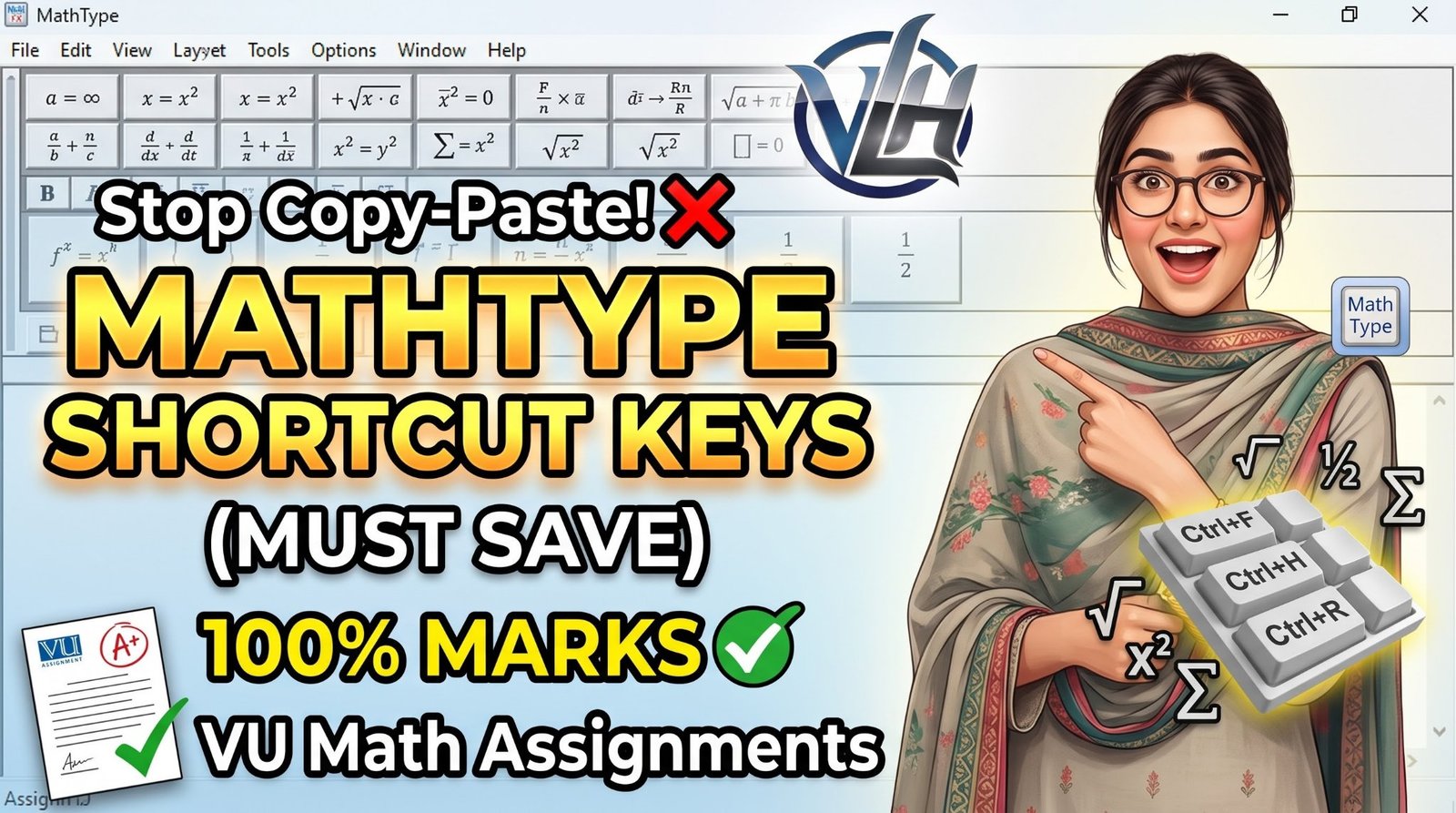
If you're a VU student taking math subjects (MTH101, MTH202, MTH301, STA301, and similar), you've probably heard the warning: plain copy-paste math in assignments gets your marks deducted. VU expects equations written properly — with real fractions, powers, roots, and symbols — using an equation editor like MathType.
The problem? Typing every equation with the mouse — clicking through menus for each fraction, root, and symbol — is painfully slow. That's where MathType shortcut keys come in. Learn them once, and writing math assignments becomes almost as fast as typing normal text.
Save this post. You'll need it for every math assignment.
Why MathType Matters for Your Marks
VU math assignments are checked for how the math is written, not just whether the answer is right. An assignment full of plain-text equations like x^2 + 3x/4 looks unprofessional and signals copy-paste work — and markers deduct marks for it.
Properly formatted equations (real superscripts, proper fractions, square roots) show genuine effort. MathType is the standard tool for producing them inside MS Word — and its shortcut keys are what make it practical under assignment deadlines.
Powers & Indices
These are the shortcuts you'll use most — powers and subscripts appear in almost every math assignment:
- Ctrl + H = Superscript (x²)
- Ctrl + L = Subscript (x₁)
- Ctrl + J = Both Superscript + Subscript together (x²₁)
Fractions & Roots
Fractions and roots are where plain-text math looks worst. These shortcuts fix that instantly:
- Ctrl + F = Fraction
- Ctrl + R = Square Root (√)
- Ctrl + T, N = Nth Root
- Ctrl + / = Diagonal Fraction (for inline fractions like ½ inside a line of text)
Brackets
Properly sized brackets around fractions and expressions — no more mismatched plain-text parentheses:
- Ctrl + 9 = ( )
- Ctrl + [ = [ ]
- Ctrl + { = { }
- Ctrl + , = ⟨ ⟩ (angle brackets)
Greek Letters
Greek letters appear constantly in math and statistics (alpha, beta, gamma, delta in formulas, distributions, and proofs):
- Ctrl + G, A = α (Alpha)
- Ctrl + G, B = β (Beta)
- Ctrl + G, G = γ (Gamma)
- Ctrl + G, D = δ (Delta)
(The pattern is easy to remember: Ctrl + G, then the first letter of the Greek letter's name.)
Math Symbols
The big operators — summation, product, and integrals — in one keystroke each:
- Ctrl + T, S = Summation (Σ)
- Ctrl + T, P = Product (Π)
- Ctrl + T, I = Integral (∫)
Accents
For decorated variables used in statistics and advanced math:
- Ctrl + ^, 6 = Hat (x̂)
- Ctrl + ^, ~ = Tilde (x̃)
Most Used Shortcuts (Learn These First)
If the full list feels like a lot, start with the four shortcuts that cover 80% of assignment work:
- Ctrl + H — Power (superscript)
- Ctrl + L — Base (subscript)
- Ctrl + F — Fraction
- Ctrl + R — Root
Master these four this week. Add the rest as you encounter them in your assignments.
MathType Workflow Tips for Assignments
1. Don't format after writing — format while writing.
The biggest time-waster is typing everything in plain text first and "fixing" equations later. Use the shortcuts as you type each equation. It's faster and the result is cleaner.
2. Learn the two-key sequences as single gestures.
Shortcuts like Ctrl + T, S mean: hold Ctrl, press T, release both, then press S. Practice each one 5–10 times and it becomes muscle memory within a day.
3. Keep this list open beside Word.
Until the shortcuts are automatic, keep this page open in a browser tab (Ctrl + T for a new tab!) and glance over while working. Within two assignments you won't need it anymore.
4. No MathType? Word has a built-in backup.
If MathType isn't installed, MS Word's own equation editor opens with Alt + =. It covers the basics (fractions, powers, roots) and is far better than plain text. But for serious math assignments, MathType's shortcut system is worth learning.
The Mistake That Costs Marks
Here's what markers see too often: an assignment where every equation is plain text — x^2, sqrt(16), a/b — clearly pasted or typed without any equation editor. It takes a marker seconds to recognize, and the deduction is automatic.
The students who get full marks on presentation aren't math geniuses. They just write their equations the way the subject demands — with proper formatting, produced efficiently with shortcuts like the ones above.
Frequently Asked Questions (FAQs)
Q1: What is MathType?
MathType is an equation editor that works inside MS Word (and other programs). It lets you write professional mathematical notation — fractions, powers, roots, symbols — using keyboard shortcuts instead of hunting through menus.
Q2: Why does VU deduct marks for plain copy-paste math?
Because plain-text equations (x^2, a/b) don't meet the formatting standard for math assignments. VU expects equations written with a proper equation editor, and markers treat unformatted math as low-effort or copied work.
Q3: Which 4 MathType shortcuts should I learn first?
Ctrl + H (superscript/power), Ctrl + L (subscript), Ctrl + F (fraction), and Ctrl + R (square root). These four cover the large majority of undergraduate assignment equations.
Q4: I don't have MathType installed. What can I use instead?
MS Word's built-in equation editor (press Alt + =) handles basic equations well. For regular math coursework, though, learning MathType pays off quickly.
Q5: Do these shortcuts work in all versions of MathType?
These are MathType's standard default shortcuts and work across recent versions. If a shortcut doesn't respond, check MathType's preferences — custom keyboard layouts can occasionally override defaults.
Final Words
Math assignments reward two things: correct working and professional presentation. The working is up to you — but the presentation is just a matter of tools. Twenty shortcuts, learned once, protect your marks in every math subject for the rest of your degree.
Save this post, open it next to Word for your next assignment, and never submit plain-text math again.
Struggling with math assignments, quizzes, or the new equation-editor requirements? You're not alone — most students lose marks on formatting, not on concepts. If you need guidance with your math subjects or semester planning, reach out to us on WhatsApp and we'll guide you: https://wa.me/923135320064