Every VU student knows the feeling. Exam dates are announced, the syllabus feels endless, and your handwritten notes are scattered across notebooks, PDFs, and random screenshots. Preparing for MCQs the traditional way often means hours of re-reading lecture slides just to find a handful of testable facts. That process is slow, and it rarely sticks.
NotebookLM changes this. It is a free AI research tool from Google that reads your uploaded material and turns it into organized, usable content, including MCQs. Instead of manually scanning through VU handouts, PowerPoint slides, and PDF books, you can feed all of it into NotebookLM and let it pull out the concepts that actually matter for your quiz and exam.
This guide walks you through exactly how to use NotebookLM to build strong MCQs notes for your VU courses. We will cover setup, prompting techniques, formatting tips, and common mistakes students make when relying on AI tools for exam prep. By the end, you will have a repeatable system you can use every semester, whether you are preparing for a quiz, midterm, or final exam. If you also want ready-made resources alongside your own notes, check our VU study guides and past papers for extra practice material.
What Is NotebookLM and Why VU Students Should Use It
NotebookLM is Google's AI-powered notebook that works differently from ChatGPT or other general chatbots. Instead of pulling answers from its general training data, NotebookLM reads the exact documents you upload and bases its responses only on that source material. This matters a lot for VU students because it means the MCQs and notes it generates come directly from your handouts, slides, or textbook chapters rather than random internet content that might not match your syllabus.
For a VU student, this is a genuine advantage. VU courses often follow specific handouts written by course instructors, and exam questions are usually drawn from those exact documents. A generic AI chatbot might give you a technically correct answer that has nothing to do with what your instructor actually taught. NotebookLM avoids that problem by staying grounded in your uploaded files.
Another reason VU students benefit from this tool is the sheer volume of content in most VU courses. Many subjects have 45 or more handouts, each running several pages. Reading and memorizing all of that manually before a quiz is exhausting. NotebookLM can process all these documents together and surface the key definitions, formulas, and comparisons that are most likely to appear in your MCQs.
It is also free to use with a Google account, which makes it accessible for every student regardless of budget. You do not need any technical skill to operate it. If you can upload a file and type a sentence, you can use NotebookLM effectively. This combination of accuracy, speed, and simplicity is exactly why more VU students are shifting from manual note making to AI-assisted study workflows.
Getting Your VU Course Material Ready Before You Start
Before you open NotebookLM, spend a few minutes organizing your source material. The quality of your MCQs notes depends heavily on what you feed the tool. Messy or incomplete input leads to messy or incomplete output, so this preparation step is not optional if you want reliable results.
Start by collecting all official VU handouts for the course. These are usually available on VULMS under the course content section. Download every handout in PDF format rather than relying on screenshots, since PDFs preserve text that NotebookLM can read and process more accurately. If your instructor also shared PowerPoint slides or recorded lecture summaries, gather those too, since they often contain extra emphasis on important topics.
Next, separate your material by topic or unit rather than dumping everything into one giant file. VU courses are typically divided into units or weeks, and keeping this structure intact helps NotebookLM generate MCQs that map cleanly to specific exam sections. If your quiz only covers the first three units, you want a notebook that only contains those three units, not the entire semester.
It also helps to remove irrelevant pages such as cover slides, references, or repeated instructor introductions. These do not contribute useful exam content and can dilute the quality of AI-generated questions. A clean, focused document set produces sharper and more relevant MCQs. Once your files are organized, you are ready to build your NotebookLM workspace and start generating structured study material for your next test.
Step by Step Process to Create MCQs Notes in NotebookLM
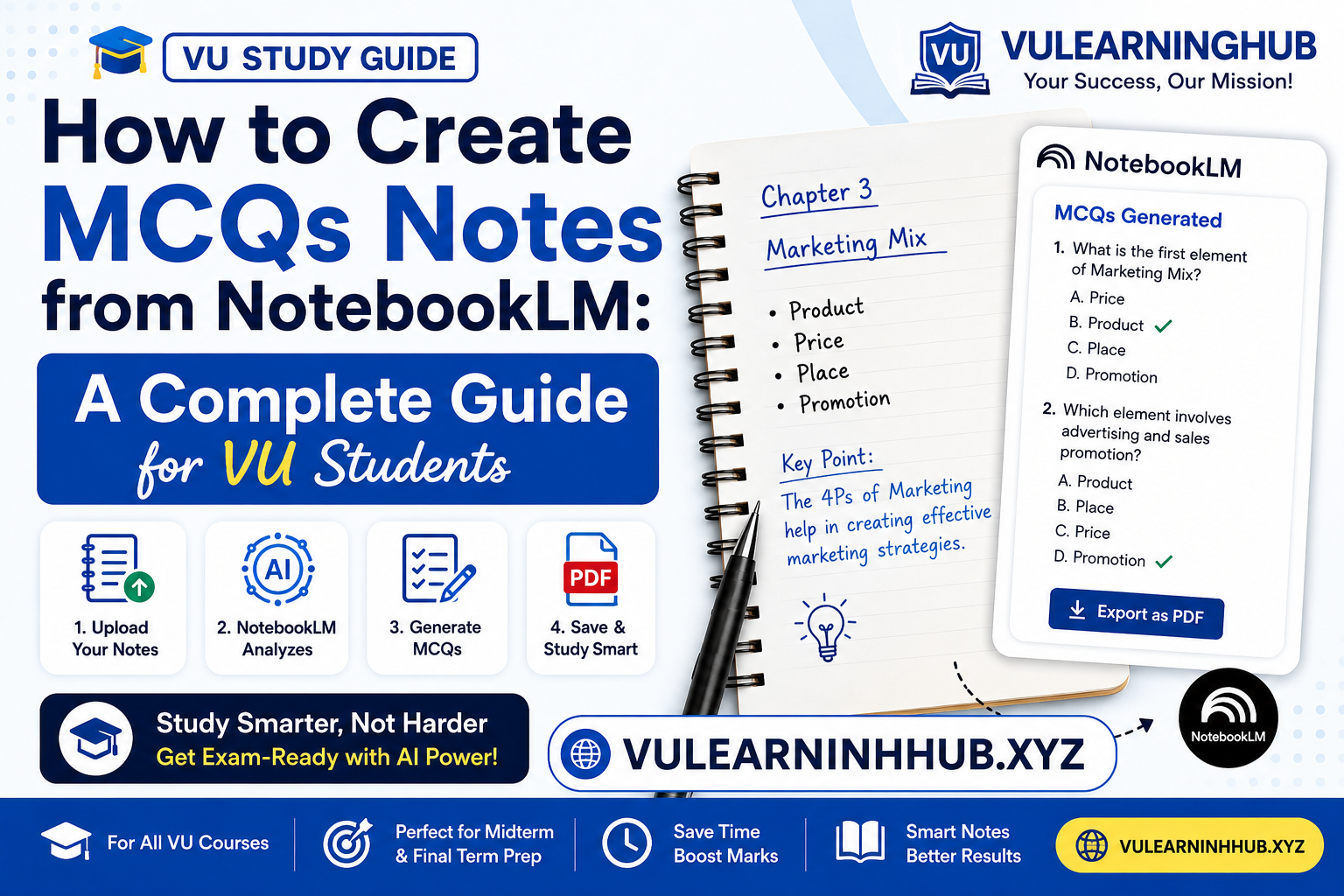
Creating MCQs notes in NotebookLM follows a clear sequence. Once you understand the flow, you can repeat it for every VU course without any confusion.
Step 1: Create a New Notebook and Upload Sources
Open NotebookLM and start a new notebook for the specific course you are studying. Give it a clear name, such as the course code, so you can find it later. Upload your prepared handouts, slides, or PDFs as sources. NotebookLM allows multiple file uploads into a single notebook, which lets it cross-reference information across all your documents at once.
Step 2: Let NotebookLM Analyze the Content
After uploading, give the tool a moment to process your files. It scans the text, identifies key themes, and builds an internal understanding of the material. You will notice a short summary appears automatically once processing is complete, giving you a preview of what the notebook understands about your content.
Step 3: Ask for MCQs Using a Clear Prompt
This is the most important step. Use a direct prompt such as "Generate 20 multiple choice questions from this material, covering key definitions and concepts, with four options each and the correct answer marked." Being specific about the number of questions, the format, and the topic focus dramatically improves the quality of what you get back.
Step 4: Review and Refine the Output
NotebookLM will generate a batch of MCQs based on your sources. Read through them carefully. If some questions feel too easy or repetitive, ask it to generate a fresh set focused on a particular unit or difficult concept. You can keep refining until the question set feels balanced and exam ready. This iterative process is what separates a rushed practice set from truly useful MCQs notes.
Writing Prompts That Actually Generate Useful MCQs
The prompts you use inside NotebookLM directly shape the quality of your MCQs. Vague prompts produce vague questions, while specific prompts produce focused, exam-relevant material. This is one area where a little extra effort pays off significantly.
Instead of typing something generic like "make some MCQs," try being precise about structure and difficulty. For example: "Create 15 MCQs from Unit 3 only, focused on definitions and comparisons, with one correct answer and three plausible distractors for each question." This tells NotebookLM exactly what format and scope you want, which reduces irrelevant or overly simple output.
You can also ask for difficulty variation. VU quizzes often mix easy recall questions with harder application-based ones. A prompt like "Include five easy questions, five medium questions, and five that require applying a concept to a new scenario" pushes NotebookLM to generate a more realistic practice test rather than a flat list of definition-based questions.
Another useful technique is asking for explanations alongside answers. A prompt such as "For each MCQ, add a one-line explanation of why the correct answer is right" turns your practice set into a mini study guide. This is especially helpful when you review the notes later and cannot remember why a particular option was correct.
If your course has heavy numerical or formula-based content, specify that too. Something like "Generate MCQs that test calculation and formula application from the uploaded chapter" ensures NotebookLM does not just focus on theory. Testing your prompt variations across a few attempts usually reveals which phrasing works best for each subject, so do not hesitate to experiment before settling on your final MCQs notes.
Formatting Your MCQs Notes for Easy Revision
Once NotebookLM generates your questions, the next step is formatting them into a document you can actually revise from quickly. Raw AI output often needs some light editing to become a clean, usable study resource.
Start by exporting or copying the generated MCQs into a document editor like Google Docs or Microsoft Word. Organize them by unit or topic heading, matching the structure of your original handouts. This makes it easy to jump straight to a specific section when you are short on time before an exam.
Number each question clearly and keep the answer choices aligned in a consistent format, such as A, B, C, D. If NotebookLM included explanations, place them directly below the answer rather than in a separate section, so you do not lose context while reviewing. Bold or highlight the correct answer so it stands out during a quick scan, especially useful the night before a quiz.
Consider creating two versions of the same file. One version includes visible answers for review sessions, and a second version hides the answers so you can test yourself under quiz-like conditions. This mirrors how VU quizzes actually work and helps you gauge your real readiness rather than just recognizing answers you have already seen.
Finally, keep your MCQs notes in a shared folder or cloud drive organized by semester and course code. This habit saves enormous time later when you revisit a course for a final exam after already using the material for a quiz earlier in the semester. A well-formatted, reusable MCQs bank becomes more valuable with every exam cycle rather than being a one-time effort.
Common Mistakes VU Students Make with AI Generated MCQs
Even with a powerful tool like NotebookLM, students often run into avoidable problems that reduce the effectiveness of their MCQs notes. Recognizing these mistakes early can save you from relying on flawed practice material during a real exam.
The most common mistake is uploading incomplete or outdated handouts. If you accidentally use a previous semester's slides or skip a unit, your generated MCQs will not reflect your actual current syllabus. Always double check that your uploaded sources match exactly what is listed on VULMS for the current semester before generating any questions.
Another frequent issue is accepting the first batch of MCQs without review. AI tools, including NotebookLM, can occasionally generate questions that are ambiguous or have more than one technically correct answer. Skimming through generated questions and verifying them against your handout content prevents you from memorizing something incorrect.
Some students also over rely on MCQs alone and skip understanding the underlying concept. MCQs are excellent for testing recall and recognition, but VU exams sometimes include short questions or scenario-based problems that require deeper understanding. Use your NotebookLM-generated MCQs as one part of a broader study plan rather than your only resource. Pairing them with our VU quiz preparation guides can round out your revision strategy.
Lastly, avoid generating an excessive number of questions in one go without organizing them. A pile of 100 unsorted MCQs is overwhelming and hard to revise efficiently. Generate manageable batches per unit, review them, and build your notes gradually rather than trying to create your entire semester's worth of questions in a single rushed session.
Using NotebookLM Alongside Other VU Study Resources
NotebookLM works best as part of a complete study system rather than a standalone solution. Combining it with other resources gives you a more balanced and reliable preparation strategy for VU quizzes and exams.
Start by cross-checking your NotebookLM-generated MCQs against past papers from previous semesters. VU often reuses similar concepts across terms, even when exact questions change. If you notice a pattern where certain topics appear repeatedly in past papers, prioritize generating extra MCQs on those specific areas. Our collection of VU past papers and solved quizzes is a useful reference point for this comparison.
You can also use NotebookLM to summarize dense handouts into shorter notes before generating MCQs. Ask it to produce a plain-language summary of a difficult chapter first, read that summary to build understanding, and only then generate questions from the same material. This sequence, summarize first and test second, tends to produce better long-term retention than jumping straight into MCQs without context.
Study groups can benefit from this approach too. If several classmates are preparing for the same VU course, each person can upload different units into their own NotebookLM notebook and generate MCQs separately. Sharing these question sets within the group multiplies your practice material without multiplying anyone's individual workload. This collaborative method has become increasingly common among VU students preparing for shared quiz deadlines.
Finally, treat NotebookLM as a supplement to instructor guidance, not a replacement for it. If your instructor has specifically emphasized certain topics during video lectures or discussion boards, make sure those areas are well represented in your uploaded sources and generated MCQs. AI tools are powerful, but the human context your instructor provides still matters for accurate exam prediction.
Tips to Get the Most Accurate MCQs from Your Uploaded Notes
A few extra habits can significantly improve the accuracy and relevance of the MCQs NotebookLM generates from your VU material. These are small adjustments, but they make a noticeable difference in output quality.
Keep your source files text-based rather than scanned images whenever possible. If a handout is a scanned PDF with no selectable text, NotebookLM may struggle to extract accurate content from it. Where possible, use the original digital handout from VULMS rather than a photographed or scanned copy, since text-based files are read far more reliably.
Update your notebook regularly as new handouts are released during the semester. Rather than creating a fresh notebook every time, add new files to your existing one so NotebookLM can generate MCQs that span multiple units together, which mirrors how comprehensive exams are usually structured. This also saves you from having to reorganize your workspace repeatedly.
When a generated question seems oddly specific or unclear, ask NotebookLM to rephrase it in simpler language. A quick follow up prompt like "make this question clearer without changing the correct answer" often resolves confusing phrasing instantly. This back and forth refinement is one of the biggest advantages of using an interactive AI tool over static, pre-made question banks.
Lastly, periodically test yourself with a mix of old and newly generated MCQs to check retention over time, not just immediately after creating them. Spaced review, testing yourself a few days after first generating a set of questions, strengthens memory far more than reviewing the same notes back to back in one sitting close to the exam date.
Frequently Asked Questions
Is NotebookLM free for VU students to use? Y
es, NotebookLM is currently free to use with a Google account, making it accessible for VU students without any subscription cost.
Can NotebookLM generate MCQs directly from VU handouts?
Yes, as long as you upload the handout files as sources, NotebookLM can read the content and generate multiple choice questions based specifically on that material.
How many MCQs should I generate per study session?
A manageable batch of 15 to 20 questions per unit works well for focused review, rather than generating your entire syllabus worth of questions at once.
Is NotebookLM enough for full VU exam preparation?
NotebookLM is a strong practice tool, but it works best when paired with official handouts, past papers, and instructor guidance rather than being used as your only study resource.
Final Thoughts
NotebookLM gives VU students a genuinely practical way to turn dense, scattered handouts into focused, exam-ready MCQs. The process is simple once you understand the workflow: organize your source material, upload it correctly, write clear and specific prompts, then review and format the output into a usable study document.
The real advantage is not just speed, though that matters when your quiz deadline is close. The bigger benefit is accuracy, since NotebookLM stays grounded in your actual course content rather than generic internet information. Used consistently across a semester, it can become one of the most reliable tools in your VU study routine.
Start small. Pick one course, one unit, and generate your first batch of MCQs this week. Once you see how much time it saves compared to manual note making, you will likely make it a permanent part of how you prepare for every VU quiz and exam going forward. For more structured support alongside your AI-generated practice sets, explore the full range of guides on VULearningHub.